Updates

Follow new updates and improvements to Cardboard Events.

December 16th, 2025

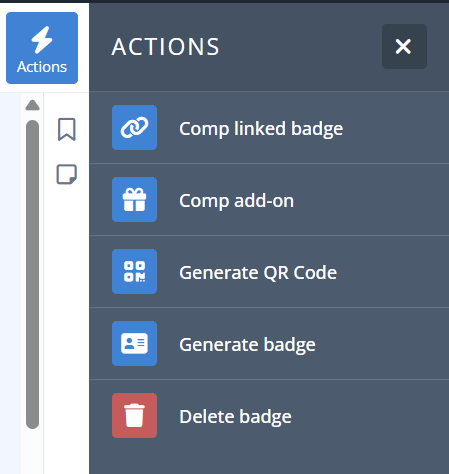
Admins can now comp linked badges to attendees via the detailed badge view. In addition, the interface has been upgraded to our improved actions area menu.

Detailed Badge View

The actions associated with a badge have been consolidated into an actions menu located in the top right of the screen. This brings all actions associated with the badge under a clean interface and is the standard layout that the system is moving towards.


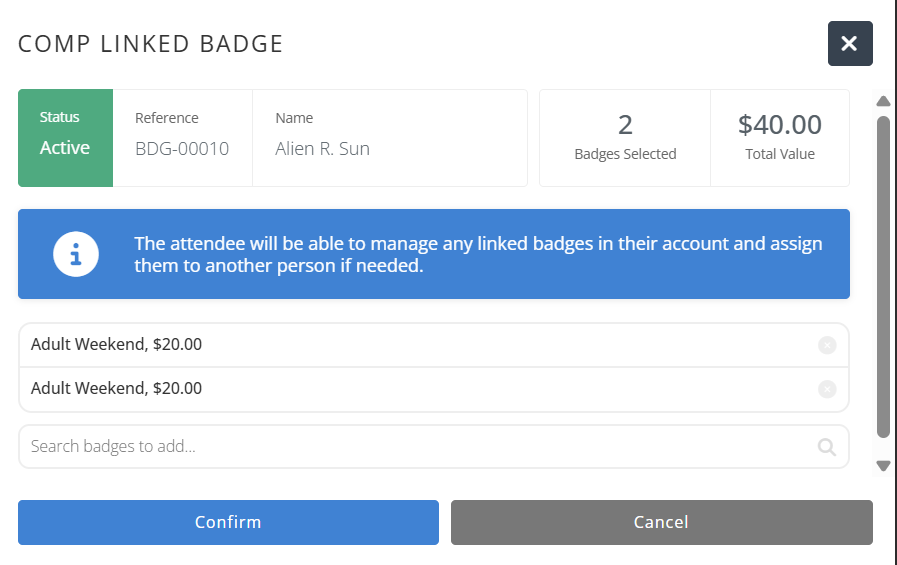
Comp Linked Badge

The comp linked badge functionality will open a panel where badges can be added. A summary at the top shows the total number of and value of the badges being comped.

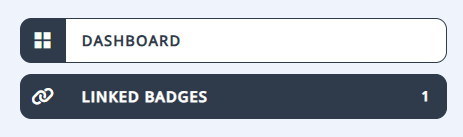
Badges will appear in the attendees “Linked Badges” section on the main dashboard and can be switched to by the managing badge holder using the main account menu. The managing badge holder can then name the badge for the person who will be using it or transfer it to their own email address/account.

December 16th, 2025

Admins can now optionally specify, at the room level, default lobbies to be selected when users are submitting events. They can make them mandatory or changeable, and even turn off user lobby selection entirely.

Rooms

A new Lobbies setting has been added for rooms that lets you enable lobby tagging (default) or disable it. This only impacts end users, admins can still tag lobbies in the backend.

Additionally, regardless of enabling or disabling for users, admins can now specify default lobbies for events submitted to that room. Each default lobby can be made required (the user cannot deselect it) or optional (the user can deselect it).

Users

For the end user, if lobbies are disabled then they won't see the input at all when submitting/managing events. If lobbies have defaults, these will be pre-selected on the form. If a lobby is required then it will have a lock icon and cannot be deselected.

Note: If there is a maximum limit of lobbies a user is able to tag to their event (e.g. 2 lobbies), then any default lobbies are counted towards that limit (e.g. 1 default lobby means only 1 additional lobby can be selected)

As always, admins are not restricted when editing events in the backend and can select whatever lobbies they want.

November 14th, 2025

A range of new features and settings for volunteers have been introduced to give greater control to admins, including allowing non-attendees to see roles, enforcing minimum or maximum hours, and more.

Access

The Pre-approved menu has been renamed to Access to better reflect its usage. Badges can be granted access to specific roles through Allowlists and Blocklists.

Settings

Volunteer settings have been enhanced significantly.

The Attendees section specifies how existing badge holders can view volunteer roles.

This can be further managed using the Slots settings.

Slot cancellations can be open or restricted.

Minimum and Maximum hours may be enforced with soft and hard barriers that will warn or prevent volunteers from adding or removing shifts outside of the accepted range.

Public access from the attendee app can also be restricted and directed to the volunteer application process

Pending assignments can be set to reduce available capacity or not, allowing for full control of how volunteer slots are presented to prospective volunteers.

Attendee Experience

When the volunteer settings are “Restricted”, unauthorized attendees will see the volunteering menu items as locked.

An application to submit for access is shown when appropriate:

When slots are set to “By Application” the “Apply for roles” button will be displayed on the “My Assignments” page where the attendee can complete the application as would be done during registration.

Prospective attendees while viewing the volunteers area of the public information section of your convention will see the “Apply to volunteer” button which will redirect them to the chosen application form.

November 14th, 2025

External users can now apply to become volunteers, selecting from the available roles and slots, for admin approval to gain access to restricted badges when registering.

Quick Guide

A new Form Type “Volunteer Application” has been introduced along with a new input type called “Volunteer Slots”.

The base inputs for this form type includes First name, Last name, Email, and the new Volunteer Slots input

This input allows applicants to pre-select the roles and slots they would like to volunteer for before their application is approved and a link to obtaining a volunteer badge is provided

Additional settings for this input include Min. Hours, Max. Hours, and Roles (to limit the available choices).

Pages

A new “Volunteer Badge” conversion has been added to Application Pages that will allow the use of the Volunteer Form.


When a prospective volunteer views the application page they will see a “Browse roles” button that will allow them to select volunteer slots and a counter that will show the number of hours selected

Clicking the Browse roles button will display a list of the available roles chosen in the form for the applicant to review and select. A counter at the bottom will show the number of hours selected, and any restrictions added to the form.

As slots are added and removed the selected hours counter will be updated.

Once the requirements have been met and the selections confirmed by the applicant, the application page will be updated with a summary of all shifts and the counter will be green allowing the submission of the application.

Applications

Admins can access applications via the new Volunteer > Applications page (previously Sign-ups), which displays a summary of the application.

Each application can be reviewed, notes added to the application, and the requested volunteer slots assessed.

If an application is approved all pending slots will be set to pre-approved and once the applicant completes their badge registration will be set to confirmed.

Volunteer slots can also be individually reviewed, approved, switched, or rejected directly on the application or in the appropriate Assignments menu

October 1st, 2025

Admins can now specify what gets transferred, if anything, with a badge including events, add-ons, and contests.

Quick Guide

The badge transfer screen has been re-designed and includes a set of new options for data transfer. Previously, everything was cancelled when a badge was transferred but now you can choose to transfer some or all content.

The attendee-to-attendee transfer process remains the same and they cannot transfer their data.

October 1st, 2025

An optional front end section that allows users to browse pending submissions separately from scheduled events.

Quick Guide

A new setting has been added to the Schedule > Settings screen called “Public Pending”. When enabled, further settings become available.

You can also opt-in or opt-out specific rooms depending on your settings.

Once enabled, the user facing website will show a new section under Schedule with the default name of Pending Approval but this can be changed to any name you prefer (e.g. “Awaiting Approval”, “Game Proposals”, etc.)

On the front end, public submissions can be searched, filtered, and viewed like any normal event but cannot be joined.

October 1st, 2025

A new setting allows pending submissions to appear on the event schedule as limited events that can't be joined yet. A great way for conventions and stores to show a fuller schedule prior to the final review process taking place.

Quick Guide

The existing Approval setting for rooms has a new option now available called “Limited Until Review”. This allows any pending submission for the room to be shown as an event alongside scheduled events, but with a special Limited status.

A limited event is essentially a placeholder for the pending submission and cannot be directly edited, except by amending the pending submission.

If the submission is eventually accepted, it is turned into a scheduled event. If the submission is rejected, the limited event is deleted.

On the front end, limited events can be searched, filtered, and viewed like any normal event but cannot be joined.

October 1st, 2025

You can now control the release of seats cross the entire convention, specific rooms, or even individual events. This can be one or multiple phases, releasing an amount of seats to some or all users.

Quick Guide

A new Seating tab has been added to Schedule > Settings which a collection of new settings relating to phase releases.

Once enabled, you can define one or more phases with a date and a percentage of seats to be released each time.

You can even decide who is able to take a seat by switch from All Attendees to selecting permitted attendees by badge, badge type, badge category, or purchased items.

You can also set release phases for specific rooms and individual events, override the convention default settings.

When seats are being released in phases, those that are not released are shown as being locked on both the back and front end.

Only permitted users will be able to take a released seat per the rules you’ve set up.

October 1st, 2025

You are now able to restore a previously cancelled event and its seated participants.

Quick Guide

A new action has been added to the Event screen that let’s you restore a cancelled event. You can access this action via the Actions button anywhere inside an event.

You will be asked to confirm the action and, if you wish to, replace the host of the event with another person. You can edit the event further after restoration too if needed.

Please be aware that if the restored event is a ticketed event then participants will be re-seated despite their original tickets having been refunded.

October 1st, 2025

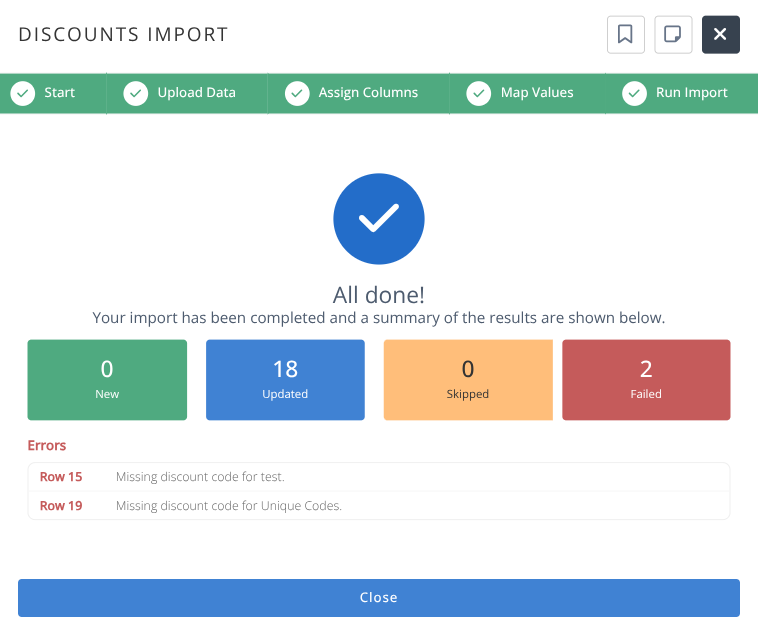
You are now able to seat people at an event on their behalf, including ticketed events.

Quick Guide

A new action has been added to the Event screen that let’s you add a participant to an event. You can access this action either via the Actions button anywhere inside an event or the Add shortcut button when on the Participants screen of an Event.

To add the participant simply search their name or reference and select them from the suggestions shown. The system will not suggest people already seated at the same event but it will suggest those already seated at other events at the same time.

If an event is ticketed then you will be able to consume any generic tickets they have purchased or comp a ticket directly, which in turn will generate an admin comp sales record.